Match Transactions
Matching Transactions with Vouchers
This section explains how to match imported bank transactions with vouchers.

Import bank transactions
- Navigate to Transactions → Import Bank Statements
- Upload a bank statement (e.g. CAMT 53 & 54 in XML or MT940)

- Imported transactions appear under Unassigned Transactions
Create or import vouchers
- Go to Vouchers
- Create new vouchers or import existing documents

- Vouchers will be listed under Available Vouchers
Select a transaction
- Select a transaction from Unassigned Transactions by clicking anywhere in the listed transaction.
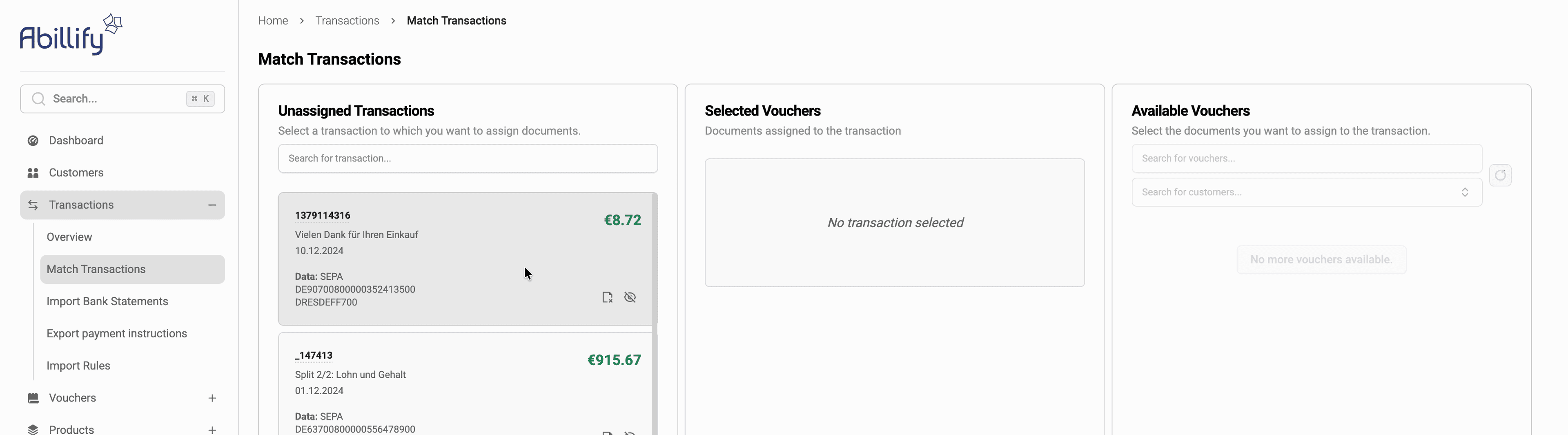
- The transaction becomes active
- The Selected Vouchers section is enabled
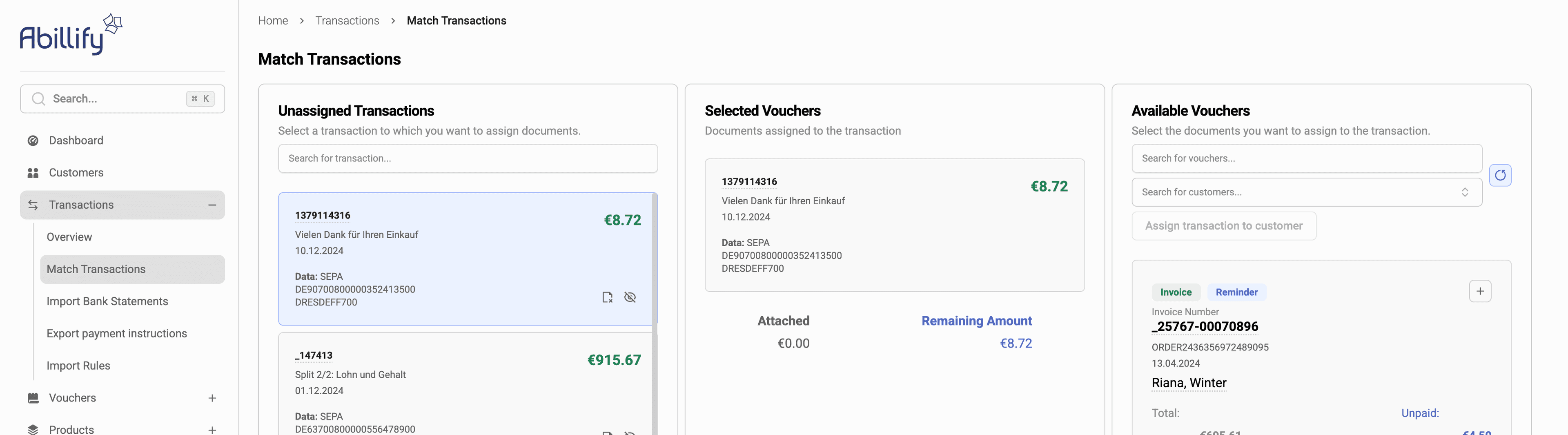
Assign vouchers
- Choose a voucher from Available Vouchers by clicking the plus icon in the listed voucher or dragging the voucher from the Available Vouchers section to Selected Vouchers.
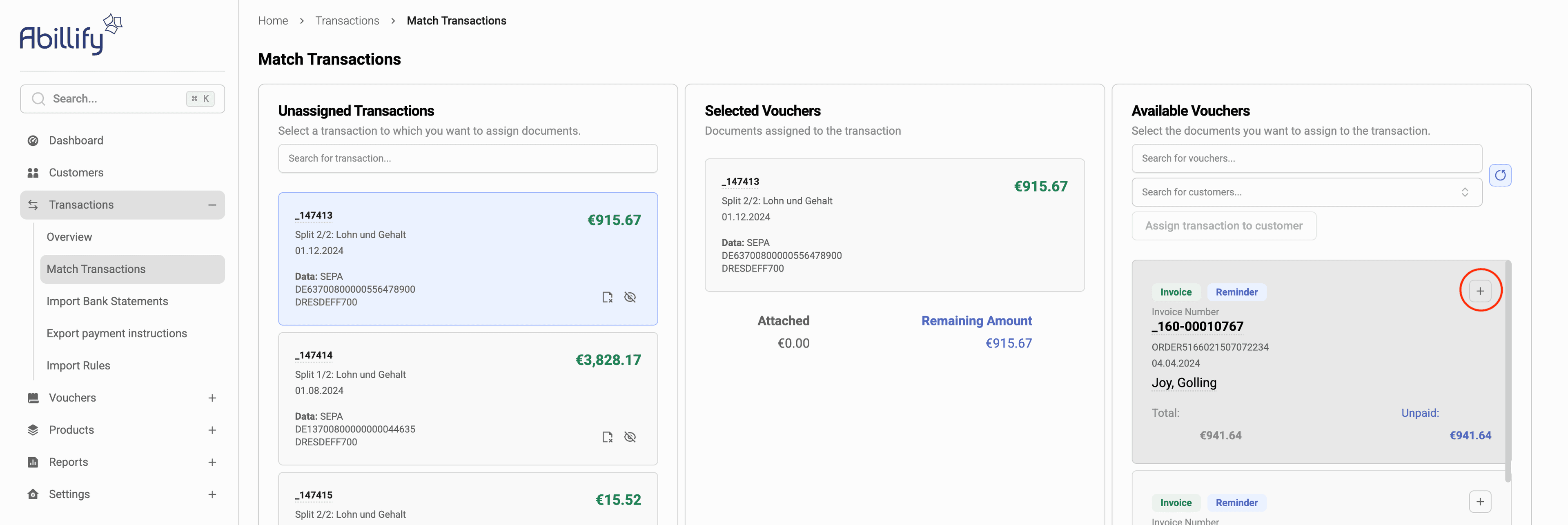
- The voucher appears in Selected Vouchers
Multiple vouchers can be assigned to a single transaction if required.
Confirm the match
- Verify amount, date, and references
- Confirm the matching by clicking the Assign Vouchers button.
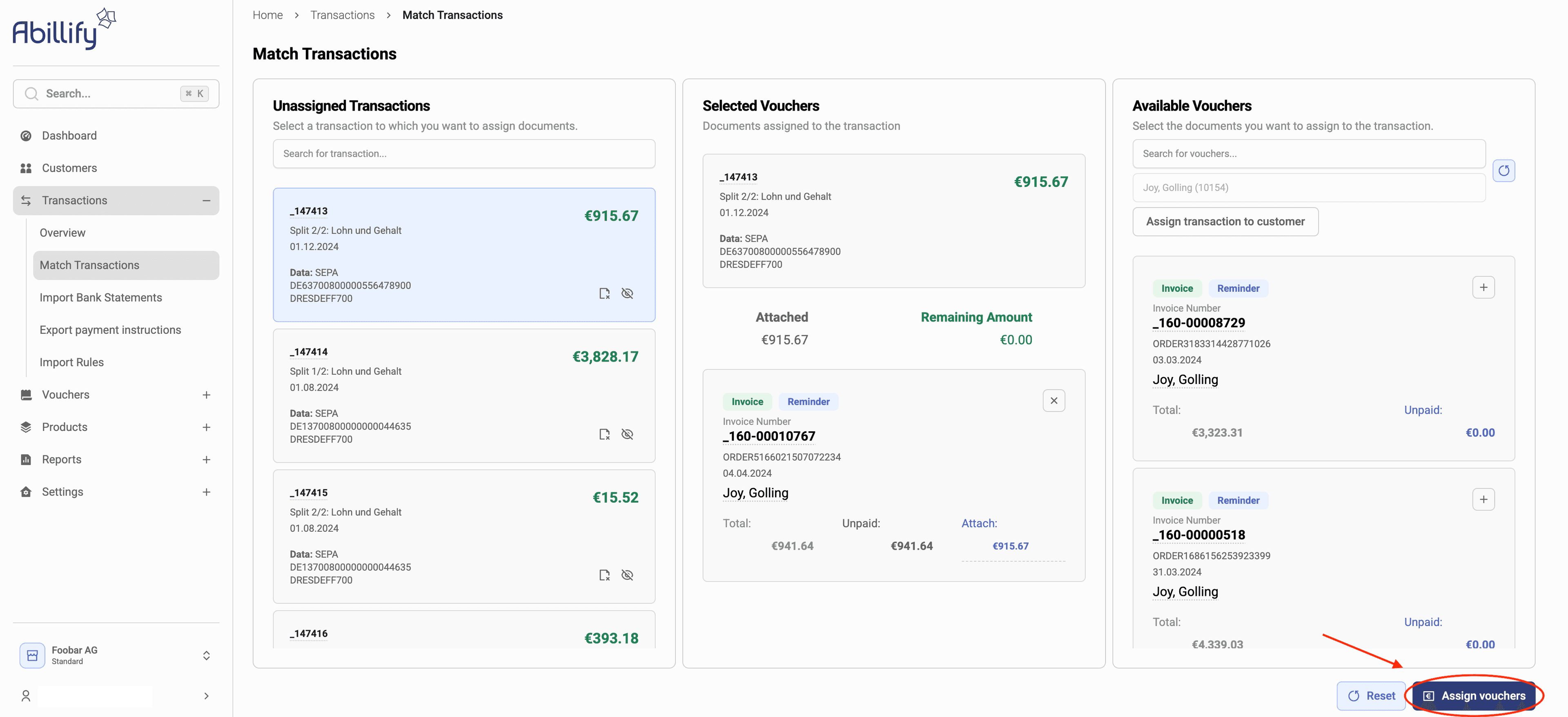
- The transaction is removed from Unassigned Transactions.
Matching completed
After successful matching:
- The transaction is marked as processed
- It no longer appears in the matching view
- If no open transactions or vouchers remain, the empty state is shown
Derecognizing Transactions
You can derecognize a transaction either fully or in part.
Fully derecognizing a transaction
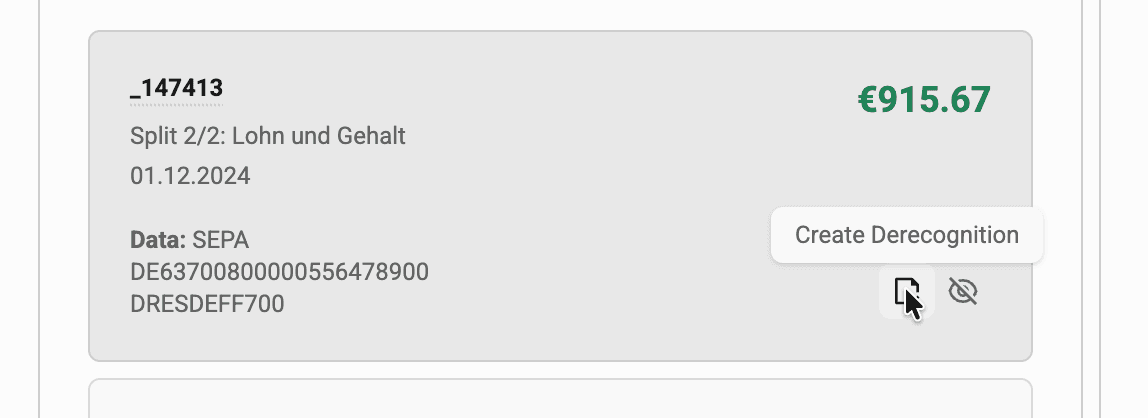
To completely derecognize a transaction, click its Create Derecognition button.
Partly derecognizing a transaction
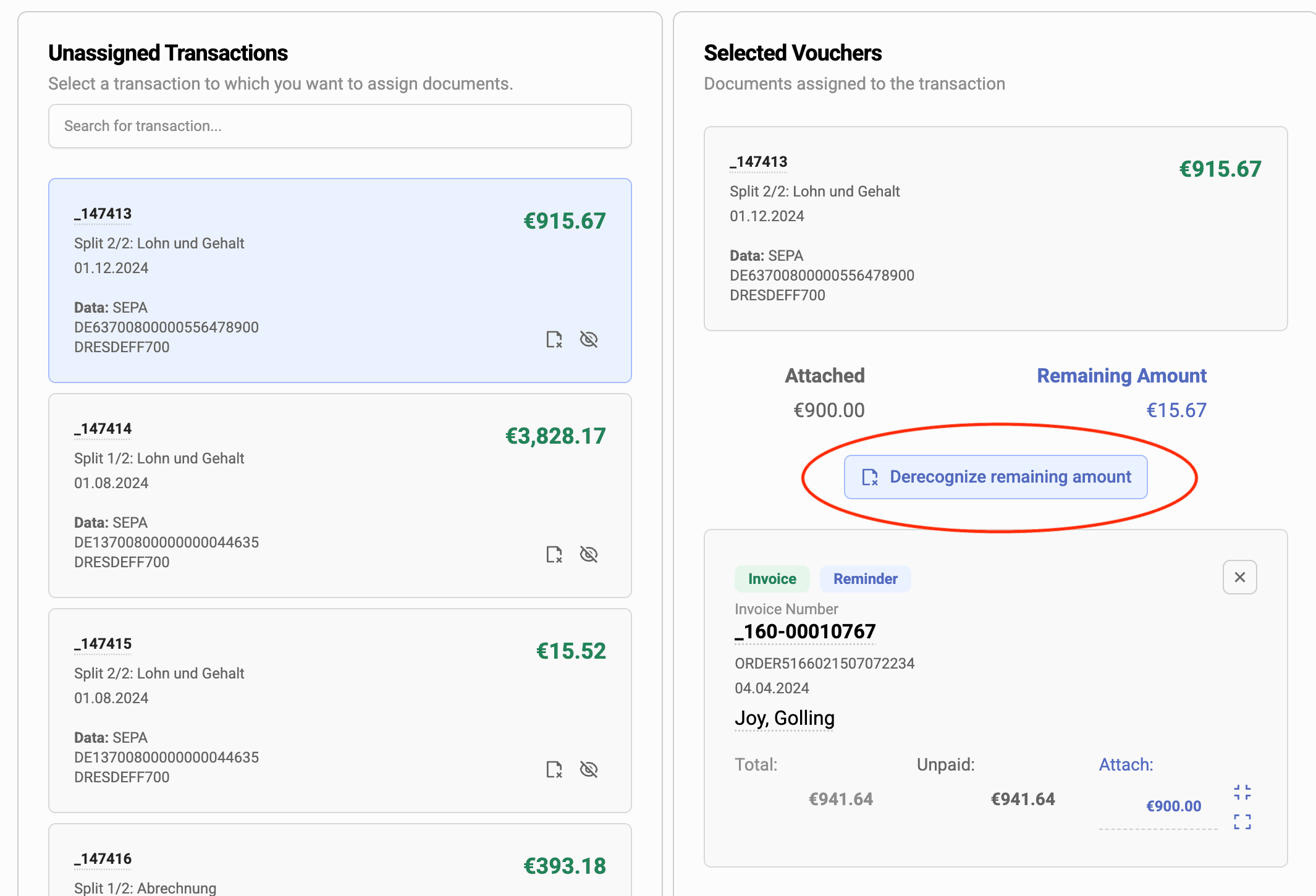
To partly derecognize a transaction, select the transaction and assign vouchers so that the remaining amount is greater than zero. Then, click the Derecognize remaining amount button.
Specifying account and reason
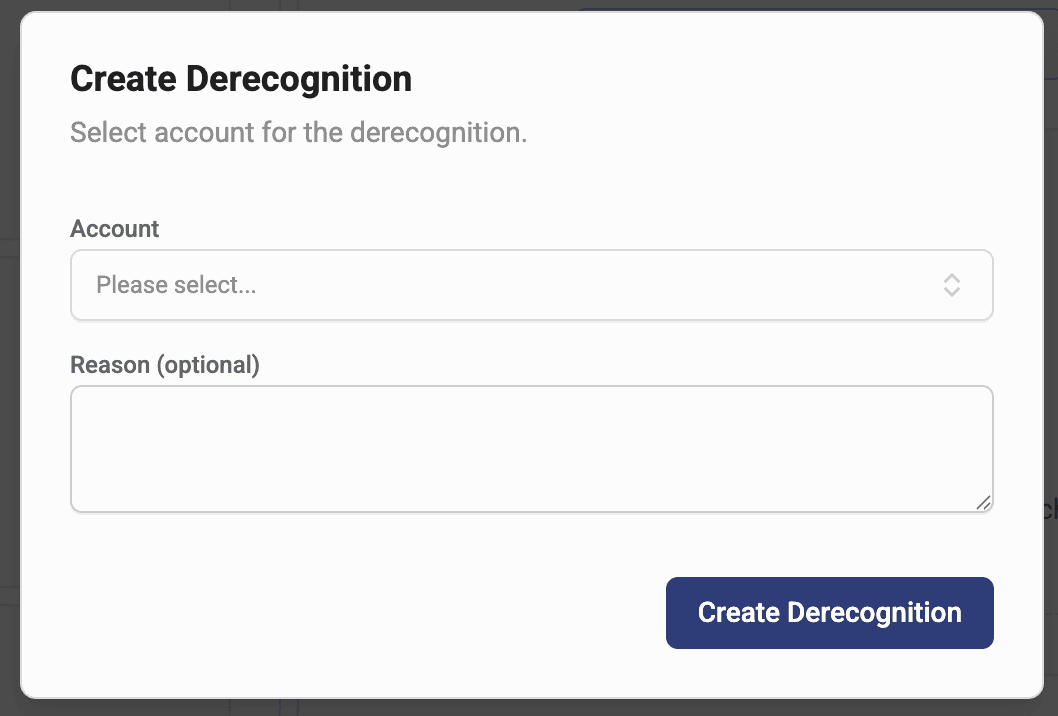
For both cases, you need to provide an account for the derecognition to be booked to, in the window that has opened.
You may also optionally provide a reason for the derecognition.
Assigning a transaction to a customer directly
You may also assign a transaction to a customer directly instead of through a voucher. To do so:
- Select a transaction.
- In the Available Vouchers section, search for the customer you wish to assign the transaction to.
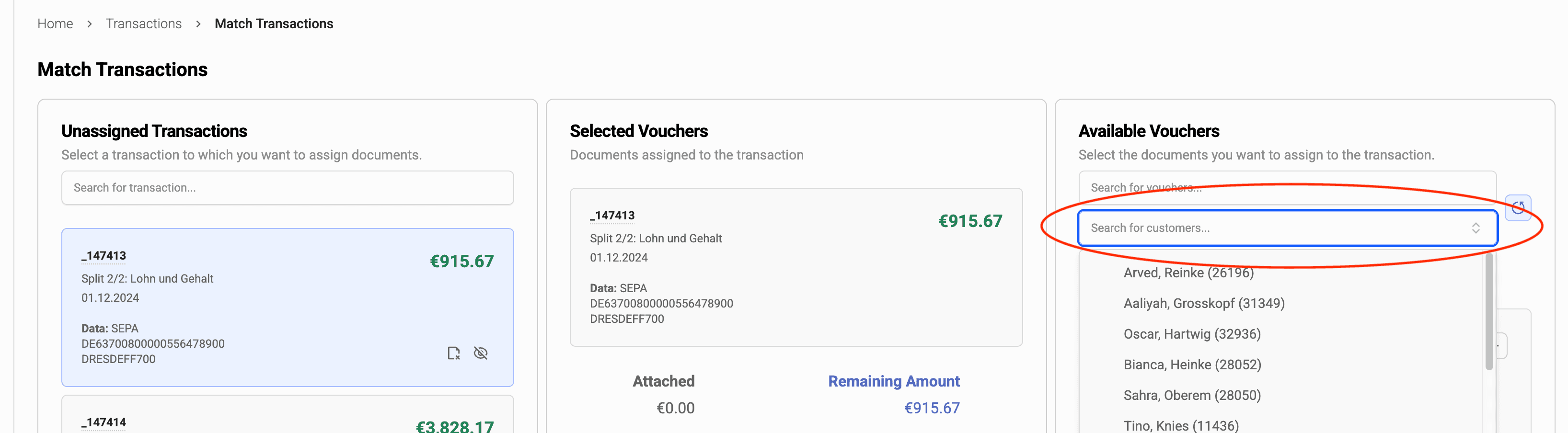
- Select a customer, then click the Assign transaction to customer button below the search box.
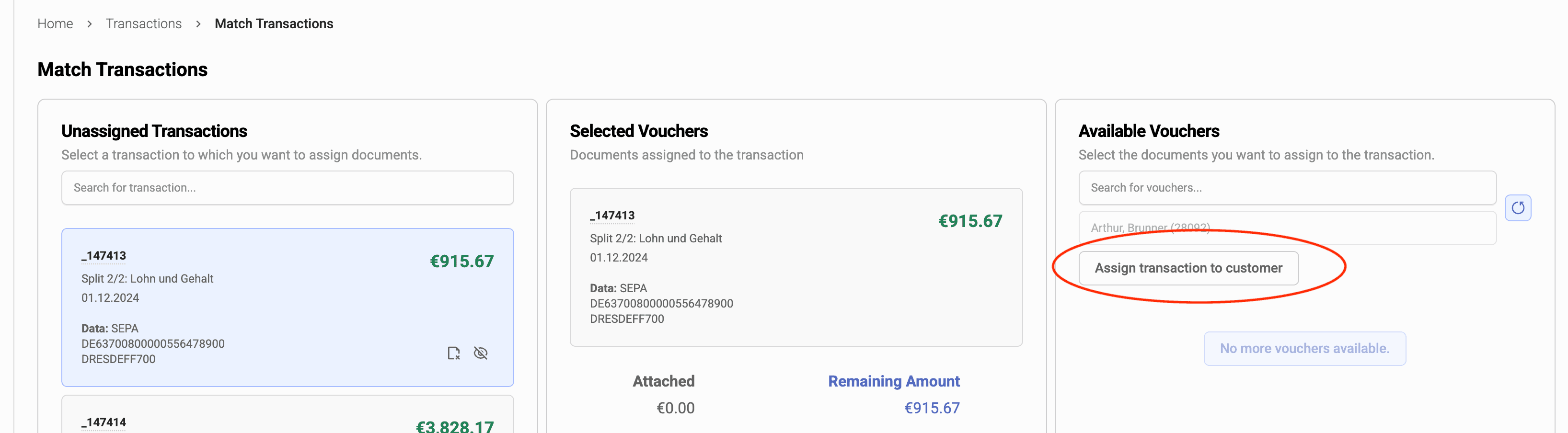
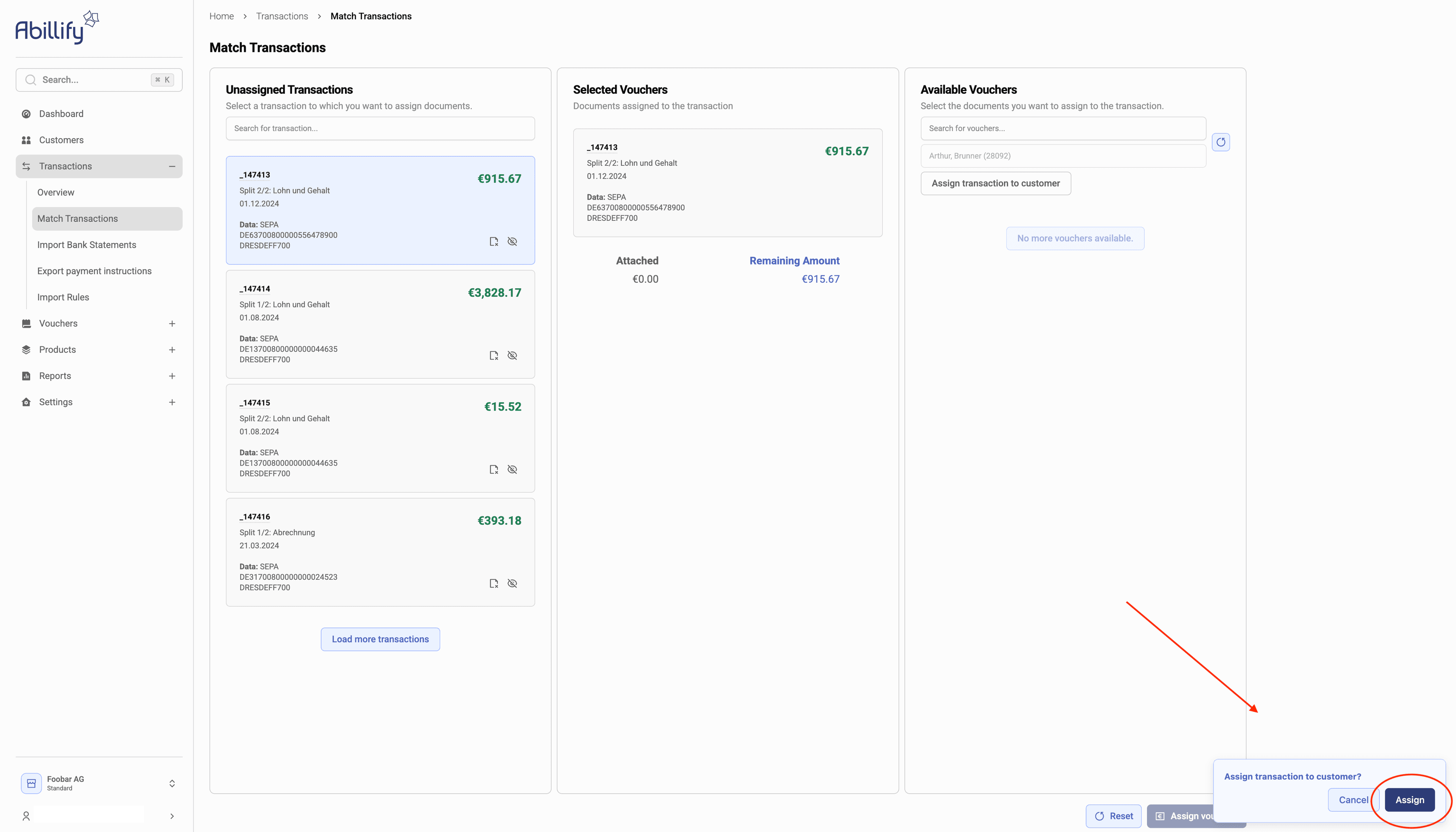
- Confirm the assignment.
Changing attachments for existing bookings
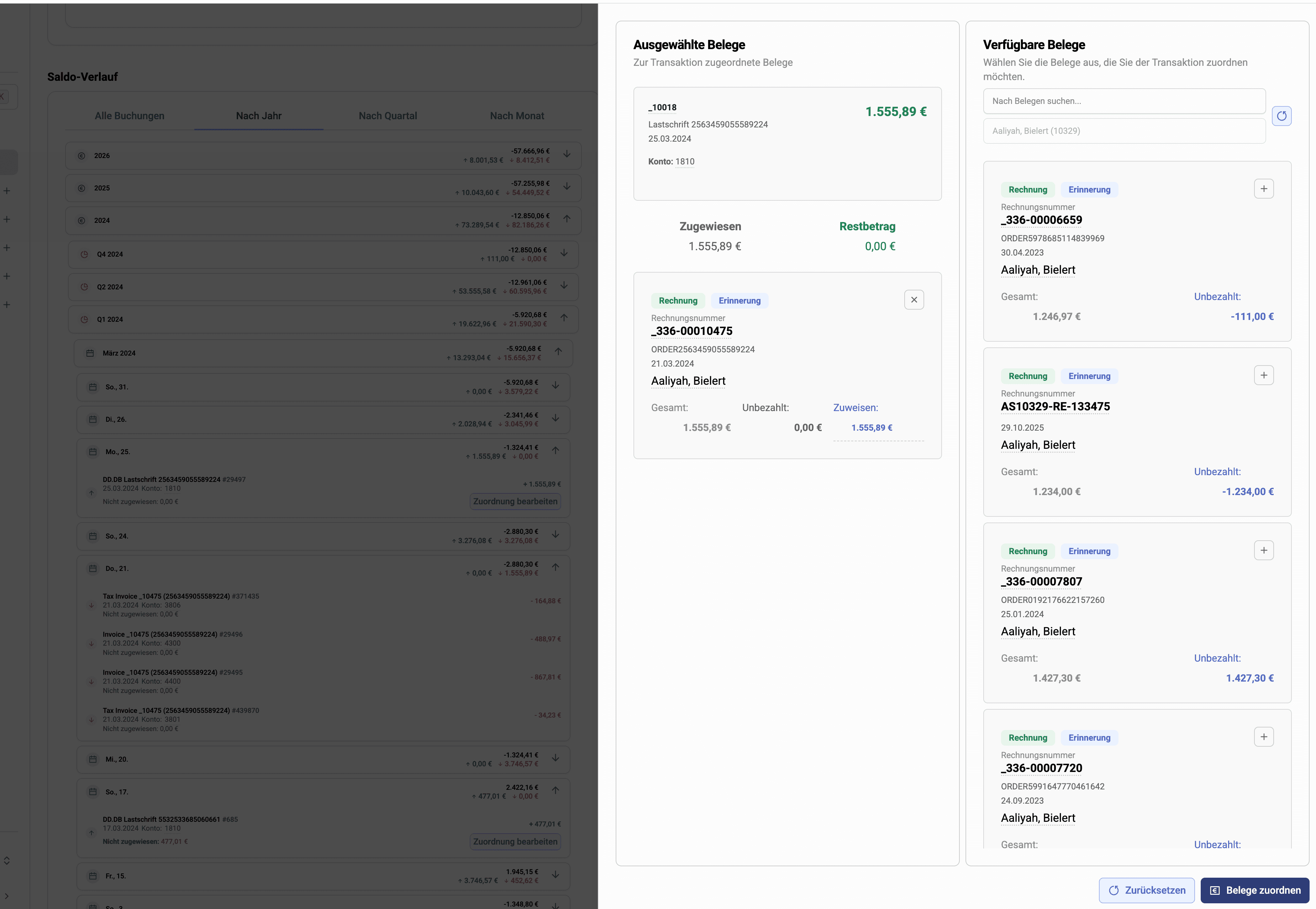
You can also change attachments for existing bookings on the customer page.
- Navigate to the customer the transaction you wish to edit was attached to.
- On the customer page, find the Balance History section. You can group the transactions by year, quarter and month.
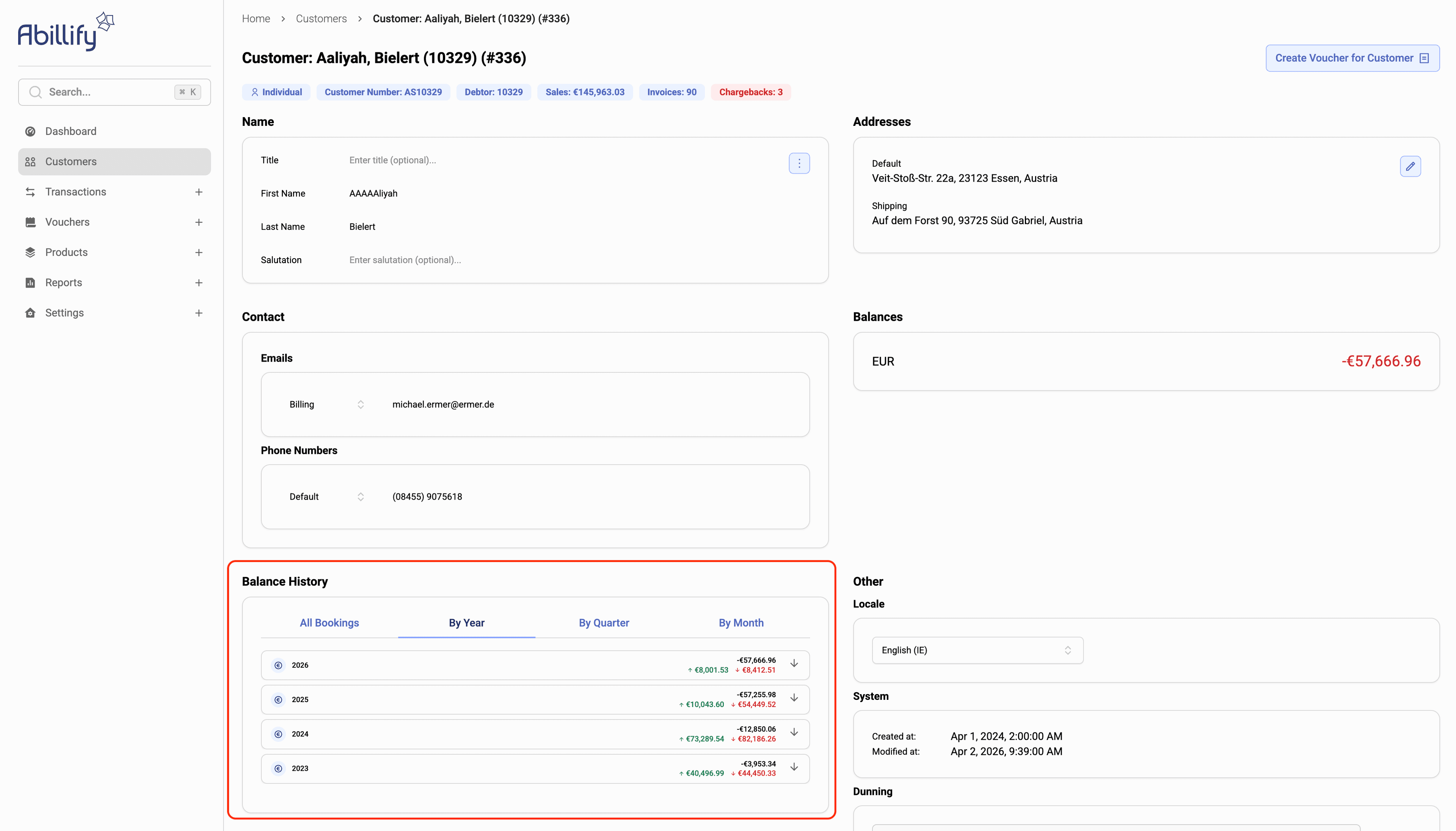
- Find the day of the transaction, then click the Edit Attachment button.
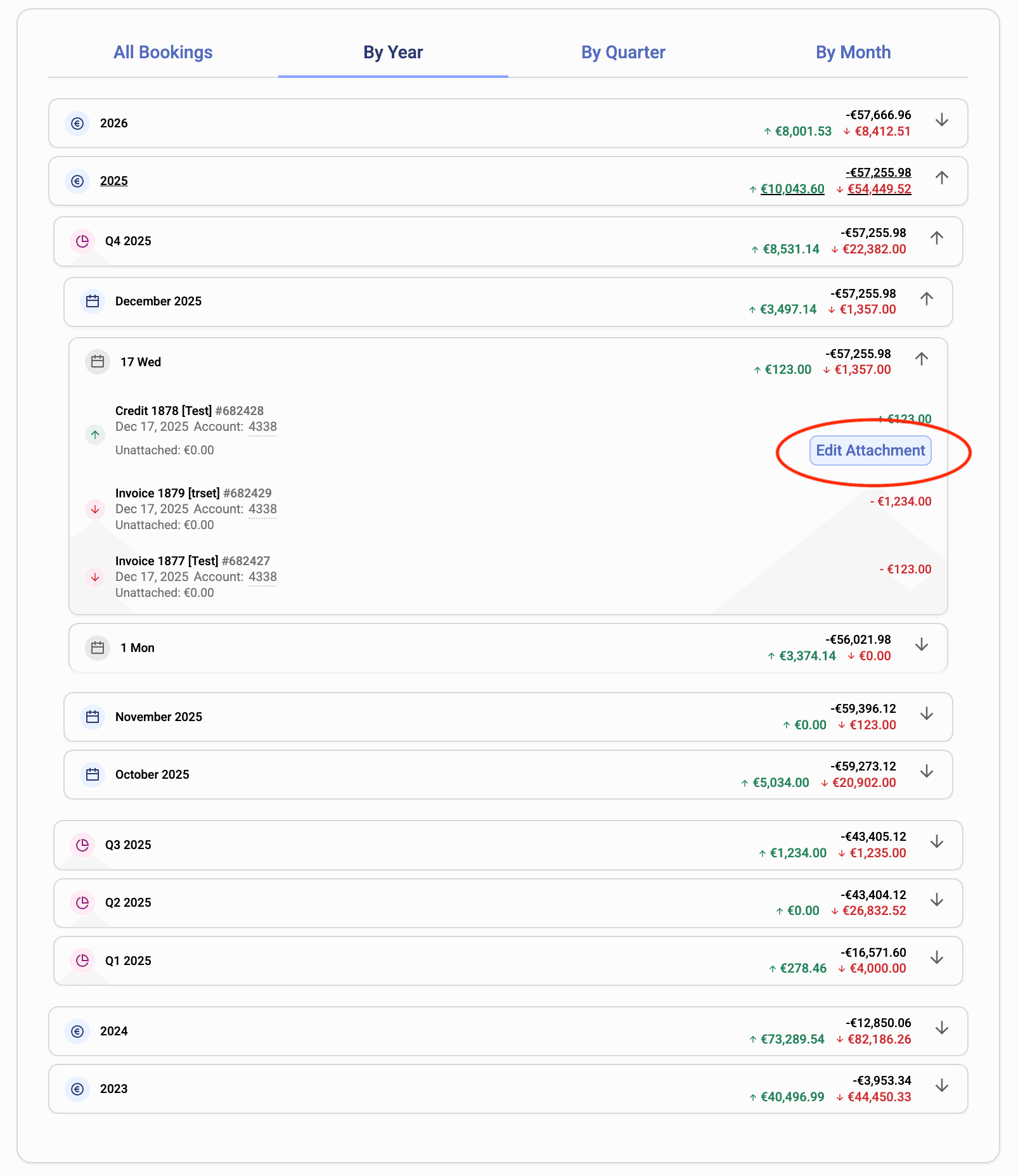
This will open the transaction matcher to the side, where you can assign bookings as normally.