Scheduling reports
Creating a Scheduled Report
-
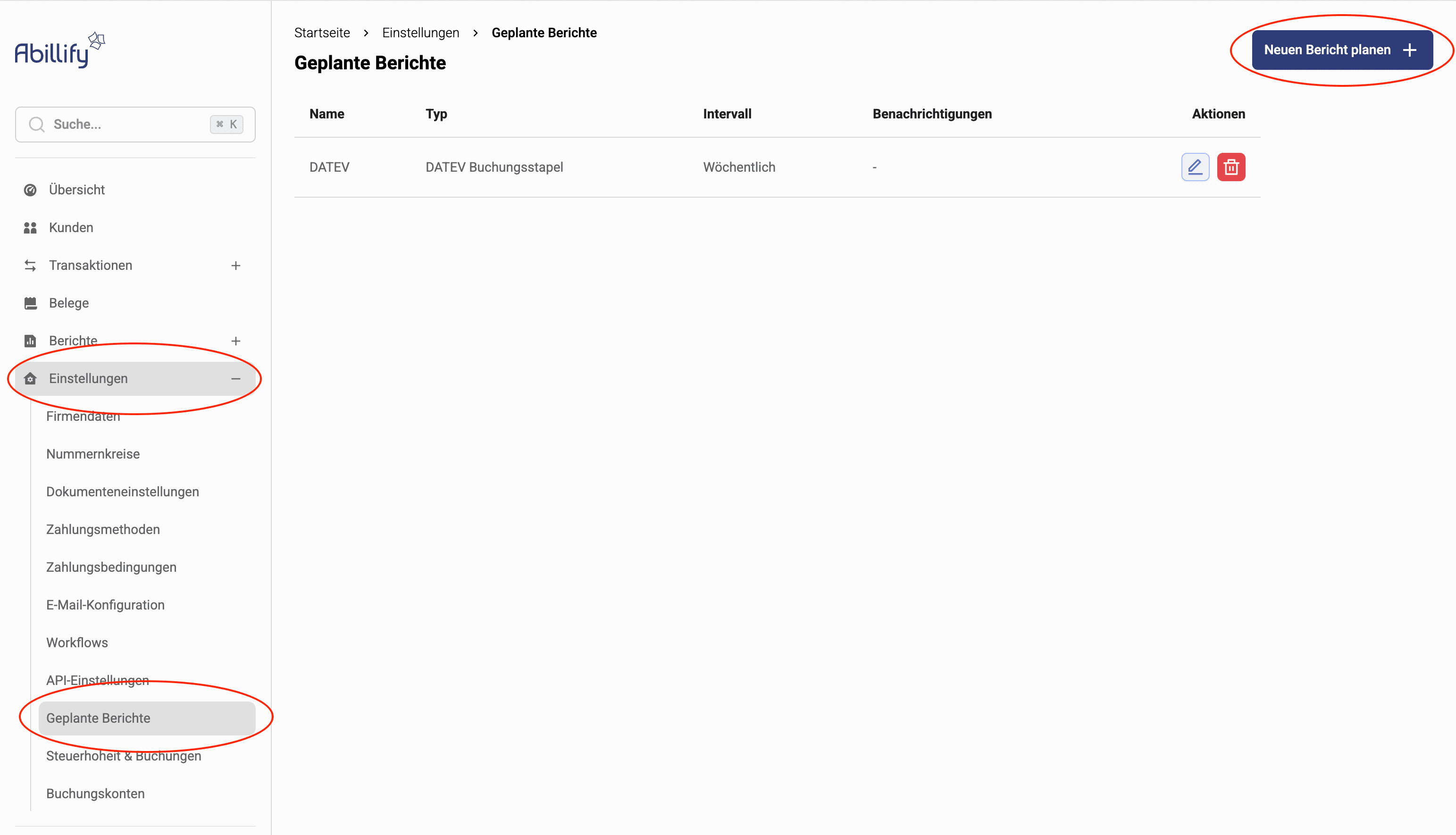
Go to Settings > Scheduled Reports
-
Click on "Schedule New Report"
-
Choose a name for your report, e.g., Booking Export
-
Select the report type, e.g., "DATEV Booking Batch"
-
Choose the interval at which the report should be generated
-
If the selected report requires additional settings, these will appear automatically. Please complete the required fields.
Generating a Report
-
Go to Settings > Scheduled Reports
-
Click on the Run button for the desired report

-
You will automatically be redirected to the Reports > Exported Reports page. Once the report has been generated, it will appear here.
This usually takes only a few seconds but can take up to 20 minutes for longer periods (> 1 month). -
Download the desired report by hovering over the report row with your mouse and clicking the "Download" button.

Reports API
All reports can also be accessed via our API here