Create an Invoice
Creating an invoice consists of two main phases:
- Configuration
Define how invoices should look, be numbered, translated, and issued. - Invoice Creation
Create the actual invoice voucher.
Configure Invoice Settings
Before creating an invoice, you can configure several options to match your business and legal requirements.
Navigate to Document Layout
- Navigate to Settings
- Open Vouchers
- Open Document Layout
- Select Invoice in the preview dropdown
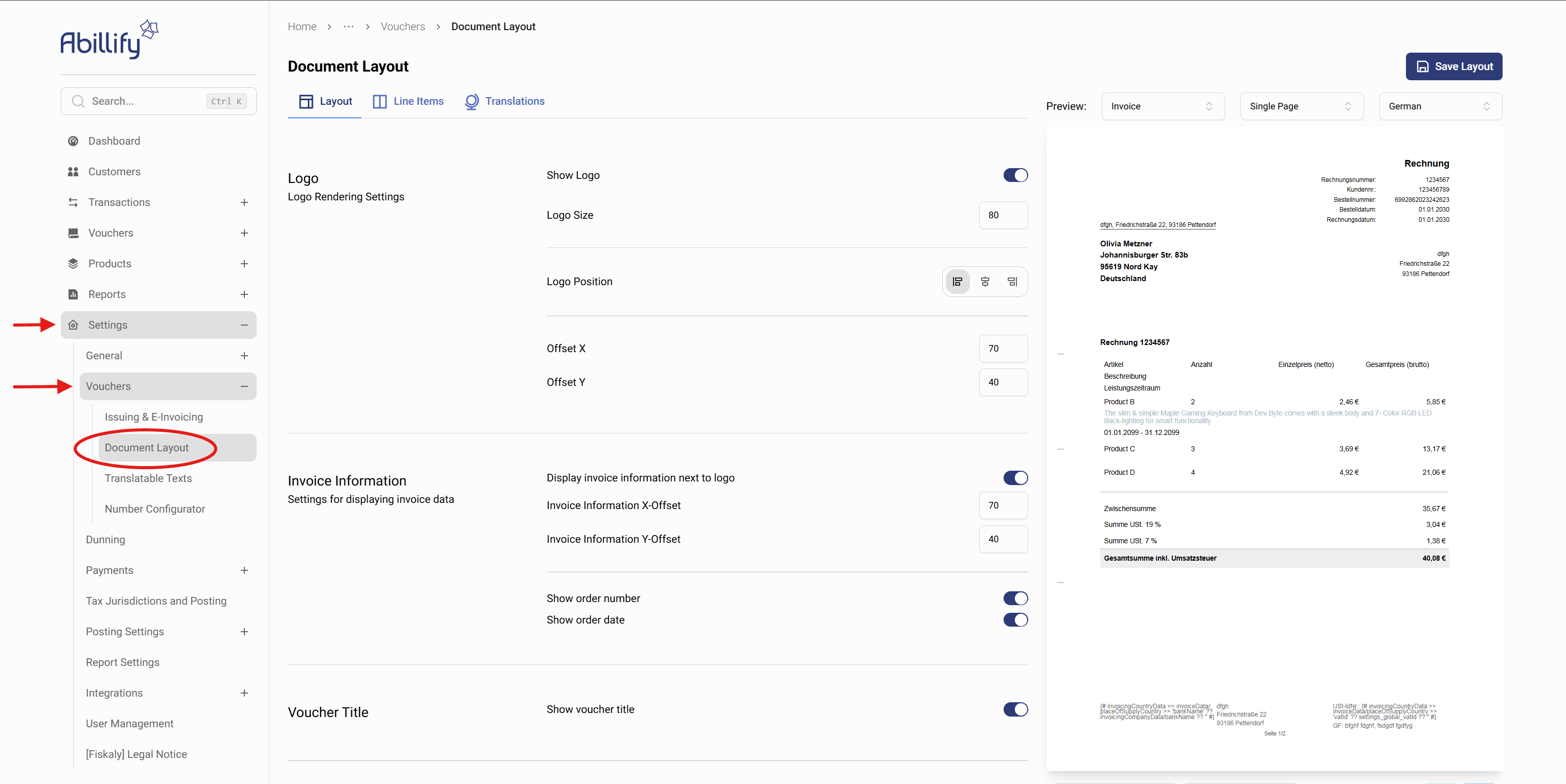
Here you can configure:
- Logo and logo position
- Invoice header and title
- Display of invoice information (invoice number, dates, order number)
- Summary position (Inline, Default)
- Colors and page margins
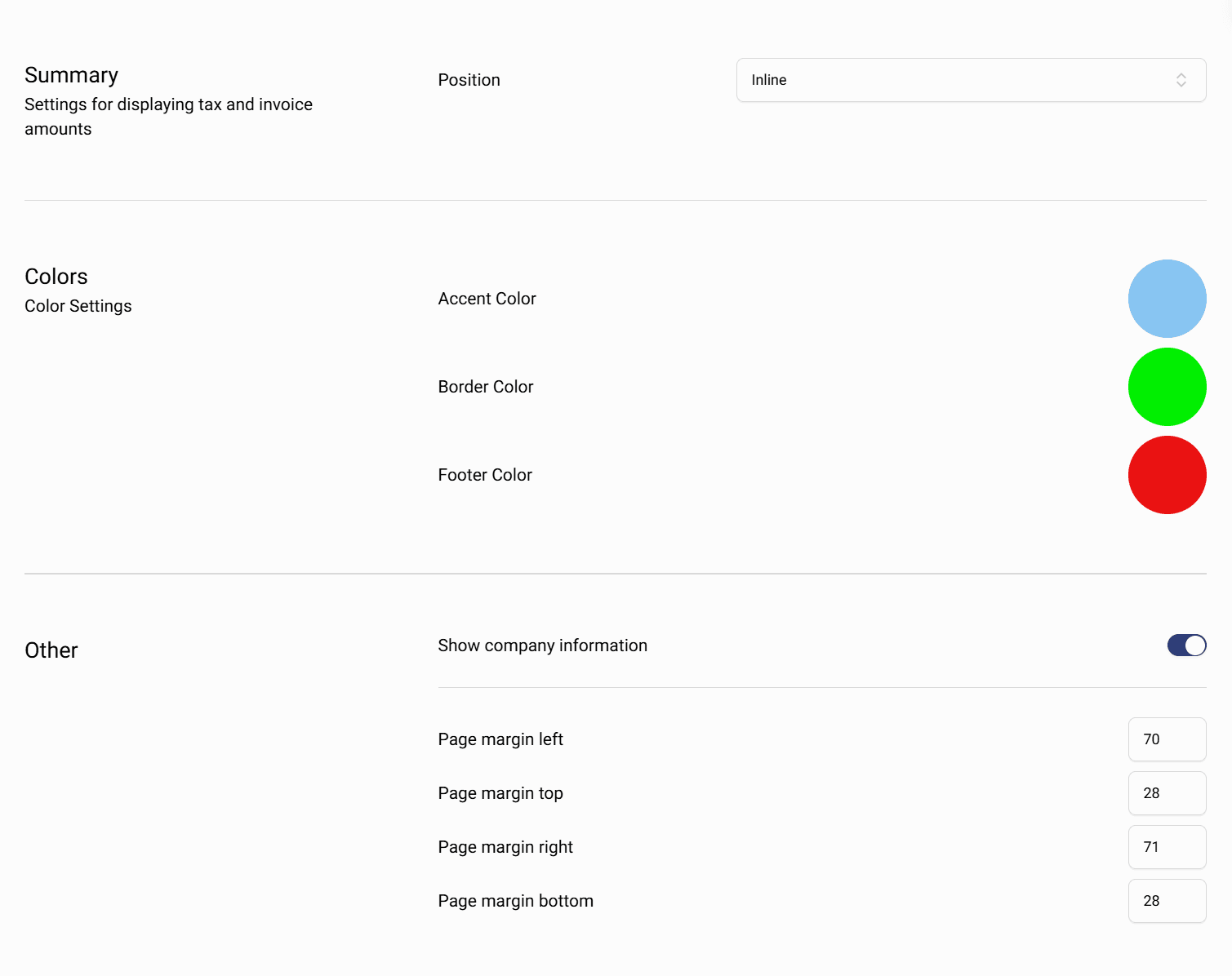
Click Save Layout to apply the changes.
Line Items
The Line Items section defines how the invoice table is displayed.
Here you configure which columns are shown, their width, formatting, and translations.
A live preview on the right side shows the result immediately.
- Go to Settings
- Open Vouchers
- Click Document Layout
- Select the Line Items tab

Available Columns
Each column represents one field in the invoice table.
Common Value include:
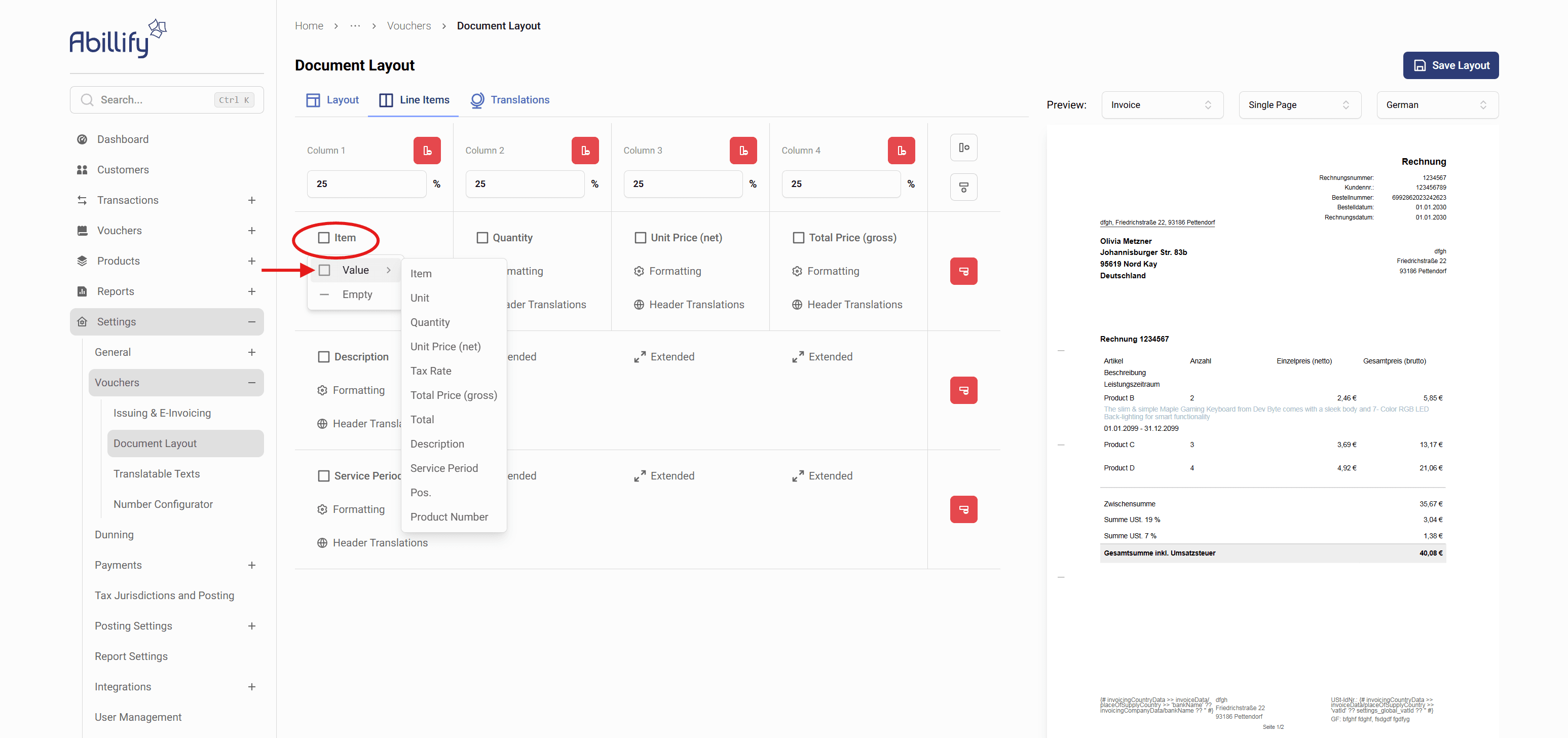
- Item – Displays the product or service name.
- Unit – Unit of measurement (e.g. pcs, hours, days)
- Quantity – Number of units
- Unit Price (net) – Price per unit, excluding tax
- Tax Rate – Applied tax rate for the item
- Total Price (gross) – Calculated total price including tax
- Total – Total amount for the line item
- Description – Additional description or details of the item
- Service Period – Time period during which the service was provided
- Pos. – Position number of the line item
- Product Number – Internal or external product identifier
You can enable or disable each column individually.
Column Width
Each column has a width defined in percent (%).
Example:
- Column 1: 25%
- Column 2: 25%
- Column 3: 25%
- Column 4: 25%
ℹ️ The total width of all columns must equal 100%.Enable or Disable Columns
- Use the checkbox next to each column name
- Disabled columns will not appear on the invoice
This allows you to keep invoices simple or detailed depending on your use case.
Formatting Options
Each column can be customized via Formatting.
Available options:

- Font Size – Adjust text size
- Text Style – Bold, Italic, Strikethrough
- Horizontal Alignment – Left, Center, Right
- Vertical Alignment – Top, Middle, Bottom
- Border – Define visible borders
- Text Color – Choose custom text color
Formatting can be applied separately to:
- Value Format (line item content)
- Header Format (column title)
Changes are visible immediately in the preview.
Header Translations
Each column supports Header Translations.
You can define column titles per language.
Example:
- English:
Unit Price (net) - German:
Einzelpreis (netto)
The correct translation is applied automatically based on the invoice language.
Extended Columns
Some columns support Extended mode.
Extended columns can:
- Span multiple rows
- Display longer content
- Improve readability for descriptions or service periods
This is especially useful for service-based invoices.
Save the Layout
After completing your configuration:
- Review the live preview
- Click Save Layout
The layout is applied to all newly created invoices.
Configure Translated Texts
Invoices can be issued in multiple languages.
- Navigate to Settings → Vouchers
- Open Document Layout
- Click Translations

This ensures invoices are displayed correctly depending on the selected language.
Configure Invoice Numbering
This step controls how invoice numbers are generated.
- Navigate to Settings
- Open Vouchers
- Click Number Configurator
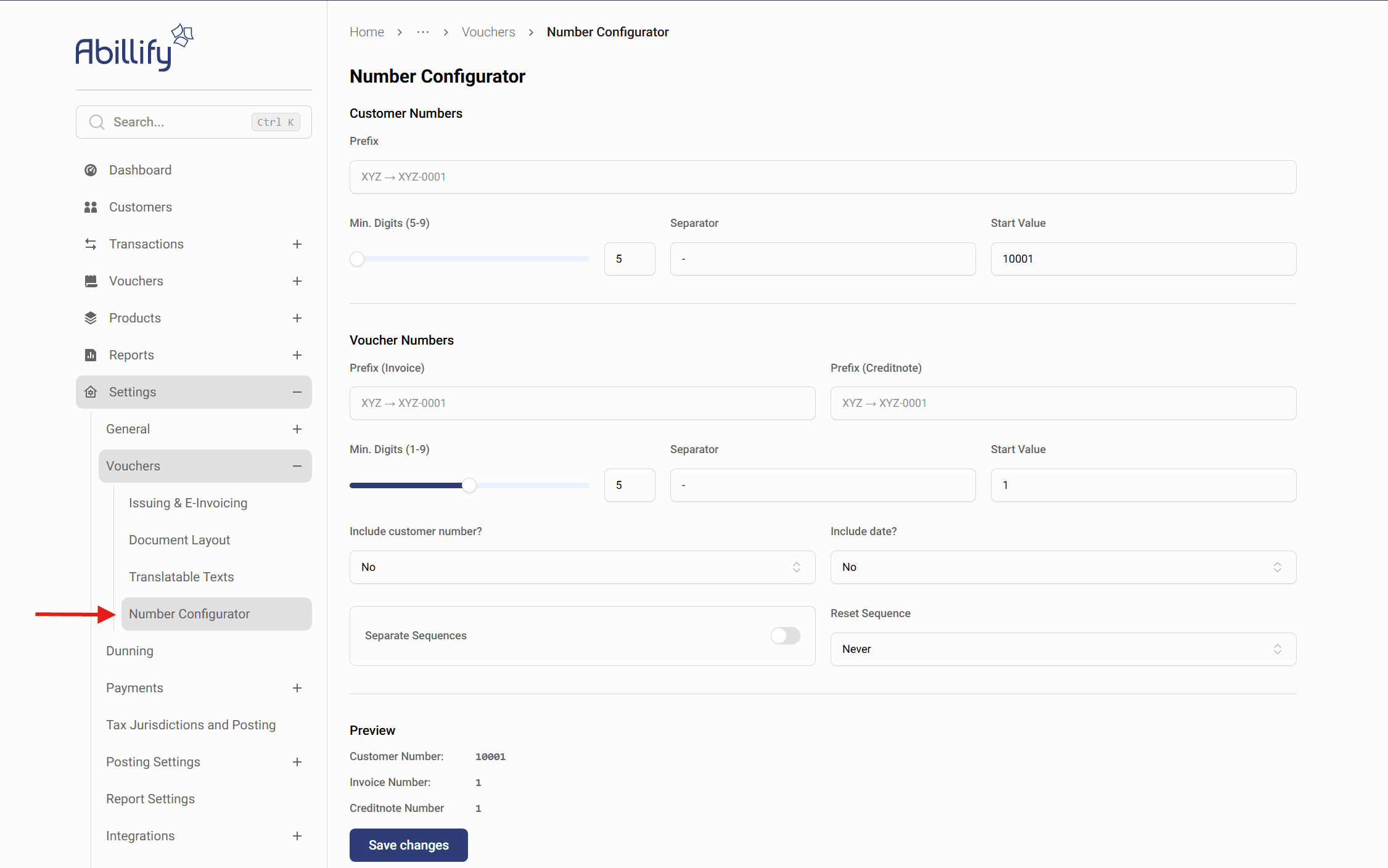
- Prefix for invoices (e.g.
INV) - Minimum number of digits
- Separator (e.g.
-) - Start value
- Include customer number
- Include date
- Reset sequence (never, yearly, etc.)
- Separate sequences for invoices and credit notes
A live preview shows how invoice numbers will look.
Click Save changes to apply the configuration.
Configure Issuing & E-Invoicing
This step defines the company and tax information that appears on invoices and enables e-invoicing.
- Navigate to Settings
- Open Vouchers
- Click Issuing & E-Invoicing
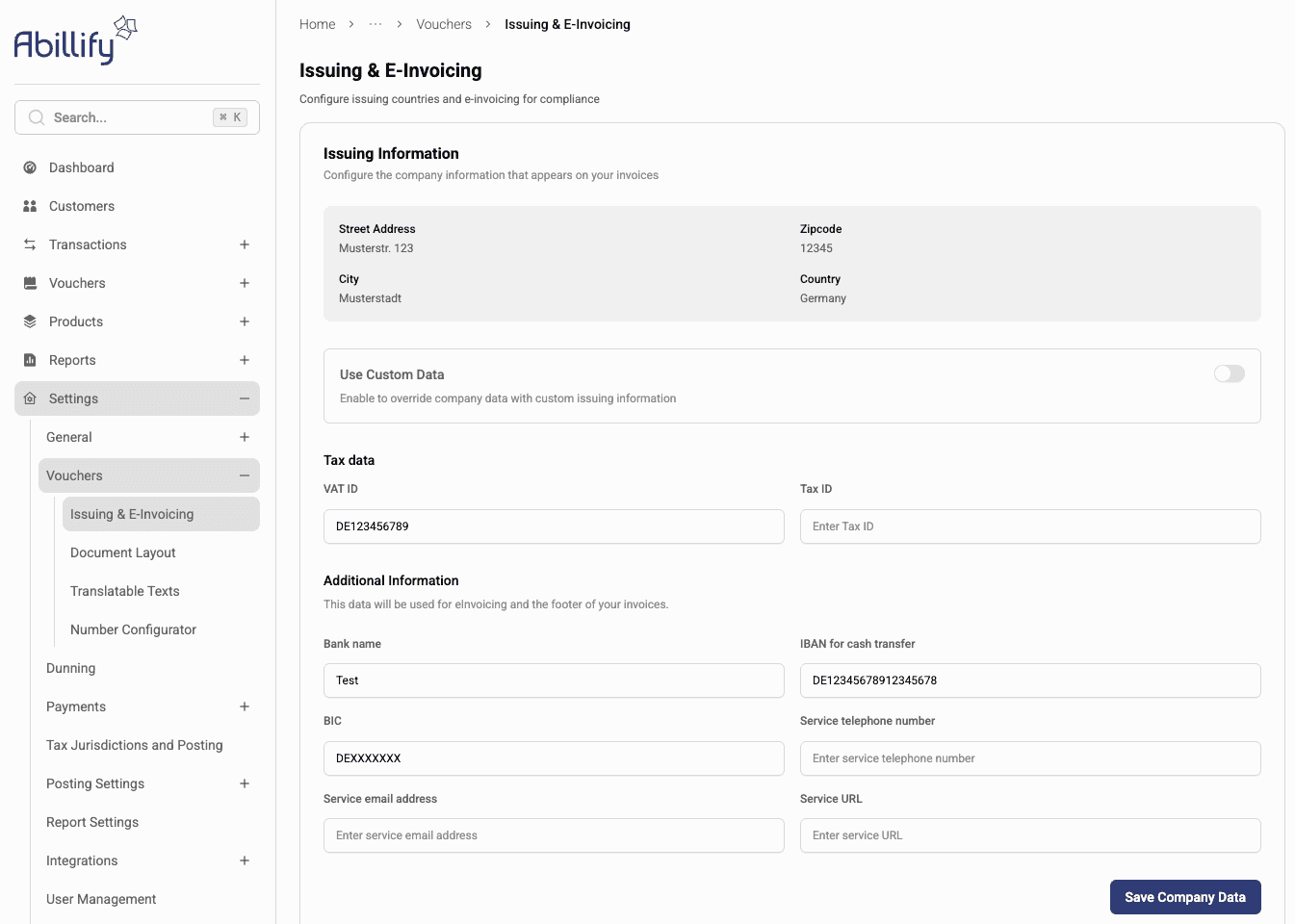
What can be configured here?
- Issuing Information
- Company address (street, city, country)
- Used on all invoices
- Tax Data
- VAT ID
- Tax ID
- Additional Information
- Bank name
- IBAN and BIC
- Service email and phone number
- Displayed in the invoice footer
- E-Invoicing
- Enable electronic invoicing for supported countries
- Use Quick Setup to enable e-invoicing for the default country
Click Save Company Data to apply the settings.
Create the Invoice
After configuration, you can create the invoice.
- Navigate to Vouchers
- Click Create new voucher

- Select the voucher type Invoice
- Fill in the required invoice details:
- Customer and address
- Invoice date
- Payment method
- Line items and amounts
- Click Save voucher
Result
- The invoice is successfully created
- The configured layout is applied
- Translated texts are used based on language selection
- Invoice numbers follow the defined numbering rules
- The invoice is ready for delivery or electronic issuing